YouTube Shorts safe zone for 1080×1920 video
Where YouTube Shorts draws its buttons and caption on top of a vertical video, in pixels, and a free overlay template to check your own edit.
On a 1080×1920 video, keep titles, subtitles and logos inside the green frame: about 140 px from the top, 380 px from the bottom and 150 px from the right edge. Everything in red is covered by the app for most viewers.
Download the YouTube Shorts overlay (PNG, 1080×1920, transparent)
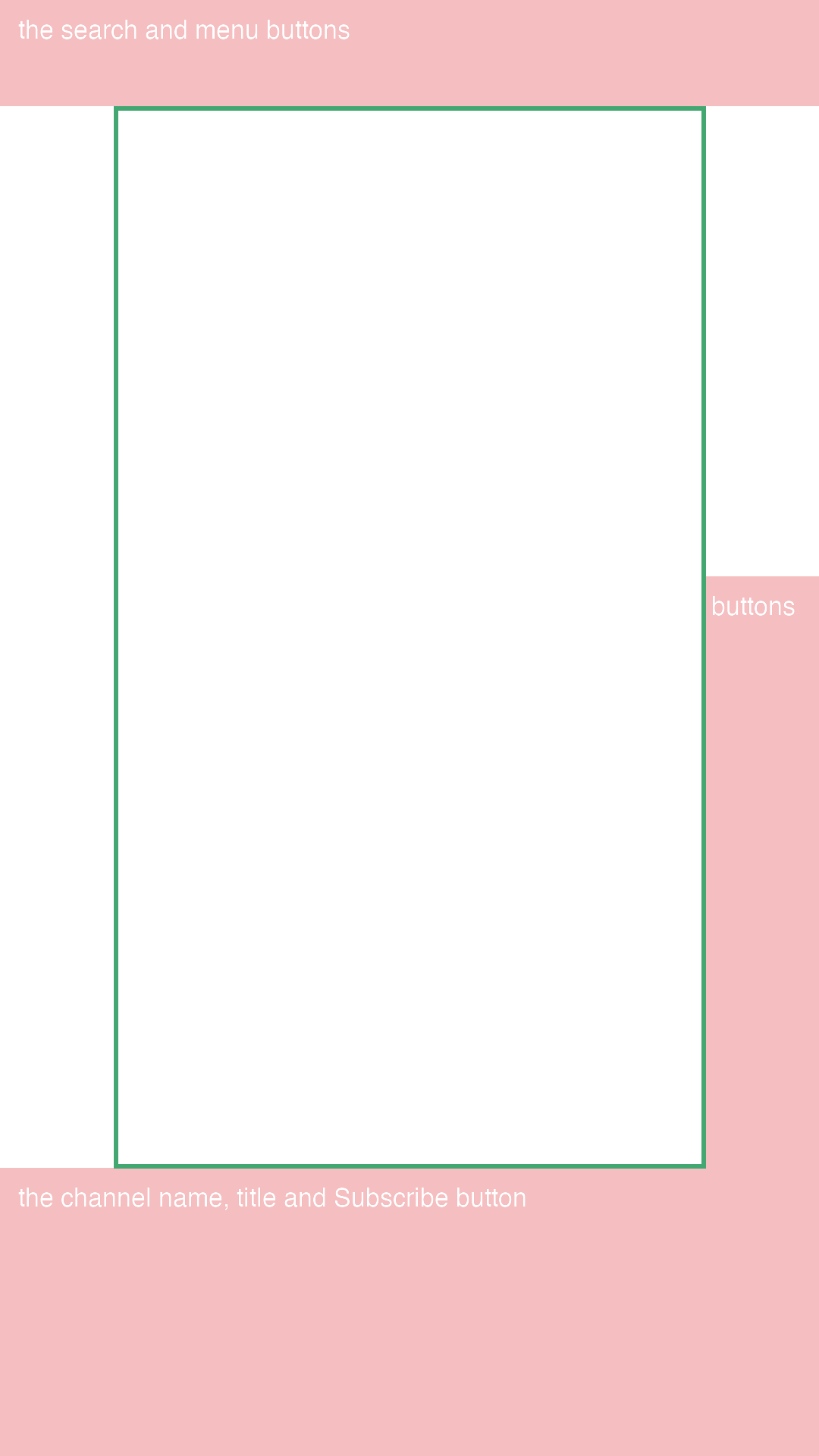
Put it on the top track in CapCut, Premiere or DaVinci at 100 % size, check your text, then hide it before you export.
What covers the video
| Area | What sits there | Size | Of the frame |
|---|---|---|---|
| Top | the search and menu buttons | 140 px | 7 % |
| Right side | the like, comment and share buttons | 150 px | 14 % |
| Bottom | the channel name, title and Subscribe button | 380 px | 20 % |
YouTube Shorts does not publish these numbers for ordinary posts, and the layout moves a little between phones and app versions. They are the middle of what safe-zone guides and checkers gave in November 2026, checked against a real campaign brief. Treat them as a careful minimum.
Shorts has the smallest bottom block
YouTube Shorts covers less of the bottom than TikTok, but its Subscribe button and title still sit over the lower fifth of the video. If you post to Shorts only, you get a little more room; if you cross-post, use the TikTok margins.
One frame for TikTok, Reels and Shorts
If the same clip goes to all three apps, use the strictest margins of each: 250 px top, 460 px bottom, 160 px on each side. The all-apps guide has a combined template.
Check your own clip
PreflightClips checks your caption and file against the campaign brief for free. Its video tools draw these zones on your actual video and move your text clear of them (3-day free trial, no card). Everything runs in your browser; nothing is uploaded.
Open the checker